丁宇 | DING Yu
你的电脑可以关机,但你的AI应该继续工作
在未来的工作模式,或者说如何高效使用AI中我提到了那个笑话:
AI流行之后,经常能看到一些社畜下了地铁以后还捧着电脑走路,因为电脑上的AI正在干活,不敢把电脑合上。
要想让AI不间断地干活,要么让自己的电脑24小时开机,要么租一台服务器(VPS),然后远程指挥AI。
前者对笔记本用户来说很难,所以这里主要说第二个办法 - 服务器。
配置好的效果
配置好了是这样的:
在自己的电脑或手机上操作Codex或Claude Code -> 云端虚拟电脑上的Codex或Claude Code收到任务并干活
这样你就可以:
- 随时继续:办公室台式机上启动任务,任务在云端,回家后换个电脑继续查看,即使出门在外,也能在手机上操作
- 不依赖本地电脑:合盖、关机后,云端任务仍然运行
- 文件随时访问:就相当于自己电脑上的一个共享文件夹
- 必要时操作桌面:使用远程桌面,你可以直接从自己的电脑和手机上远程控制整台虚拟电脑,你甚至都不用安装软件,直接打开浏览器就行
这是用浏览器访问虚拟电脑的桌面时的样子(在比如升级Codex或Claude Code app时会用到):
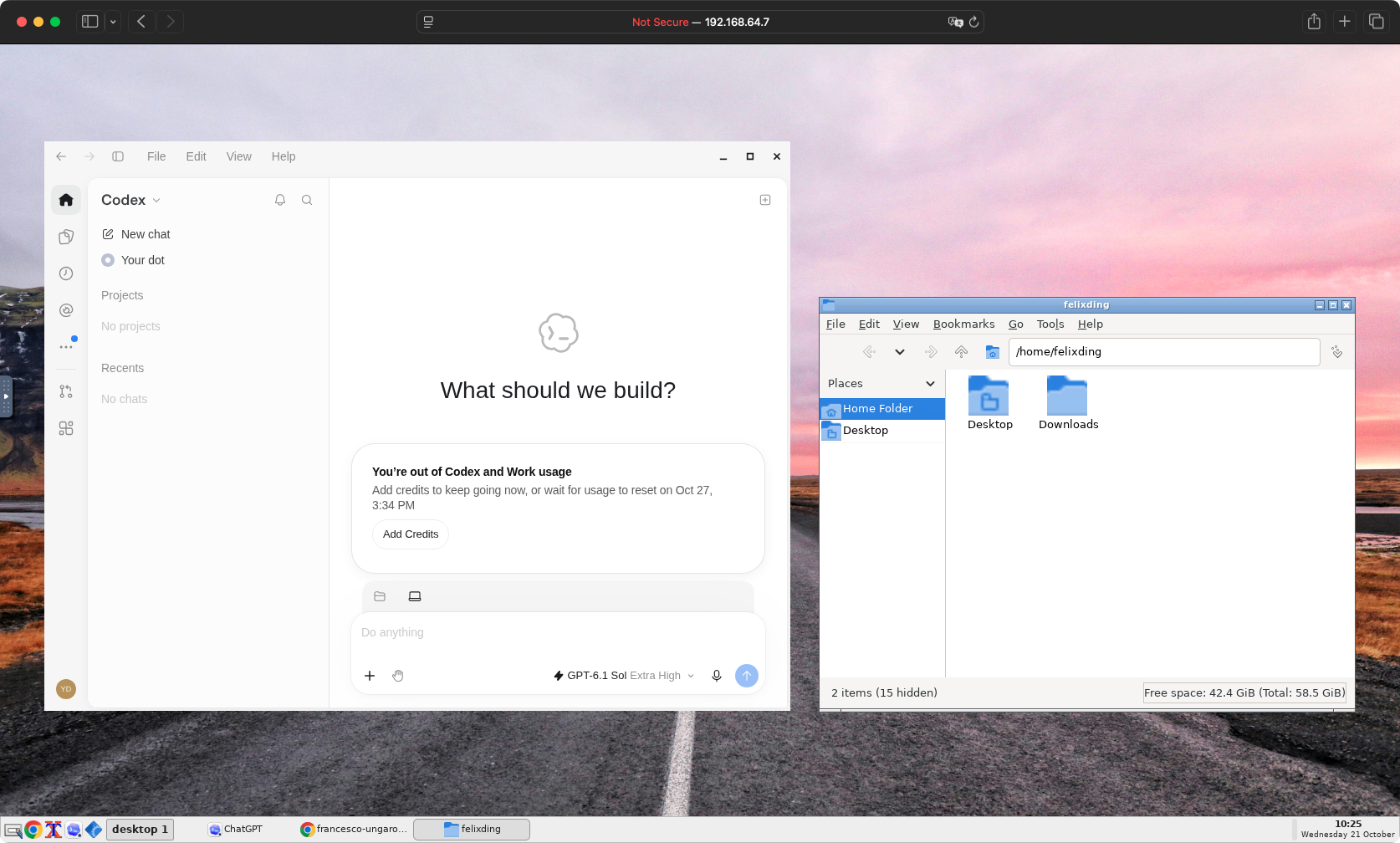
换句话说,这有点像Codex或Claude Code版本的OpenClaw,只不过你还拥有一整台可以远程操作的电脑!
我自己一直在Mac Mini+MacBook Pro+iPhone上使用这套方案,最近又做了个Linux版本,这样就可以在任何云服务商(比如阿里云)上开一台服务器,然后实现相同的效果。
和官方Codex Cloud和Claude Code Cloud的区别
其实OpenAI和Anthropic官方也提供云端服务,但是和上面的方案相比,官方服务有几个主要的限制:
- 它们主要侧重远程开发,比如Codex要求你第一步就是连接GitHub账号。上面的方案则能让你做任何事情;
- 它们在处理任务时,会临时创建一台虚拟电脑,用完了再回收,这样里面的文件可能也就没有了。而上面的方案是一台长期运行的完整电脑。安装的软件、文件、数据、浏览器登录状态都可以持续保留。
- 它们还不能操作电脑和浏览器。比如你说帮我打开XX网站填个表,这个它们还做不到,但是上面的方案可以。
对中国用户的额外好处
如果在海外开一台服务器,这个办法可以让你用上Codex和Claude Code,因为这就是物理上的在海外嘛!
安全起见最好再加个干净的IP。
怎么实现
你可以让AI帮你设置,在服务器上安装好Codex命令行后(Claude Code请自行调整),直接把这段指令发给它:
Set up this Linux machine as a remotely accessible AI workstation.

1. Install [Codex Desktop for Linux](https://github.com/ilysenko/codex-desktop-linux) and enable remote connections so I can use it from the official Codex app on my Mac, with the same functionality as a local installation.
2. Install Google Chrome and a lightweight desktop environment (e.g. Openbox) to support browser use and computer use.
3. Set up remote desktop access via VNC, including browser-based access using noVNC.
4. Set up Samba to share my home directory with my Mac/PC.
5. Use my existing Linux username and password for both VNC and Samba authentication. Do not create separate accounts or passwords.
6. Use the Codex GUI app as the single source of truth for Codex sessions and configuration. Avoid separate CLI installations or duplicate session state.
7. Configure all services to start automatically after reboot.

Secure remote access, avoid exposing services directly to the public internet, and verify that everything works.
如果有问题或需要帮助,欢迎留言或给我发邮件:[email protected]